
Getting Started with Quantumult X
Last updated:
Get started with Quantumult X by adding a server resource, selecting an imported entry, and testing a first connection. The steps use iPhone or iPad as the example.
Contents
What is Quantumult X?
Quantumult X is a rule-based network app by Cross Utility Ltd. It can manage servers, routing policies, and other configuration resources. A remote server resource supplies server entries. Filters and rewrite resources have separate roles, so choose the resource type that matches what you are importing.
How to Download and Install?
Open the Quantumult X download page and follow the App Store link. Check the listing for device requirements and availability. The App Store also lists Mac and Apple TV compatibility, but the walkthrough below uses the phone or tablet interface.
Interface Overview
The main screen presents connection status and the available policies or server entries. Settings contain controls for remote server resources, and configuration rules determine which requests are sent to selected policies. Start with an existing configuration and one working resource before adding extra filters or rewrites.
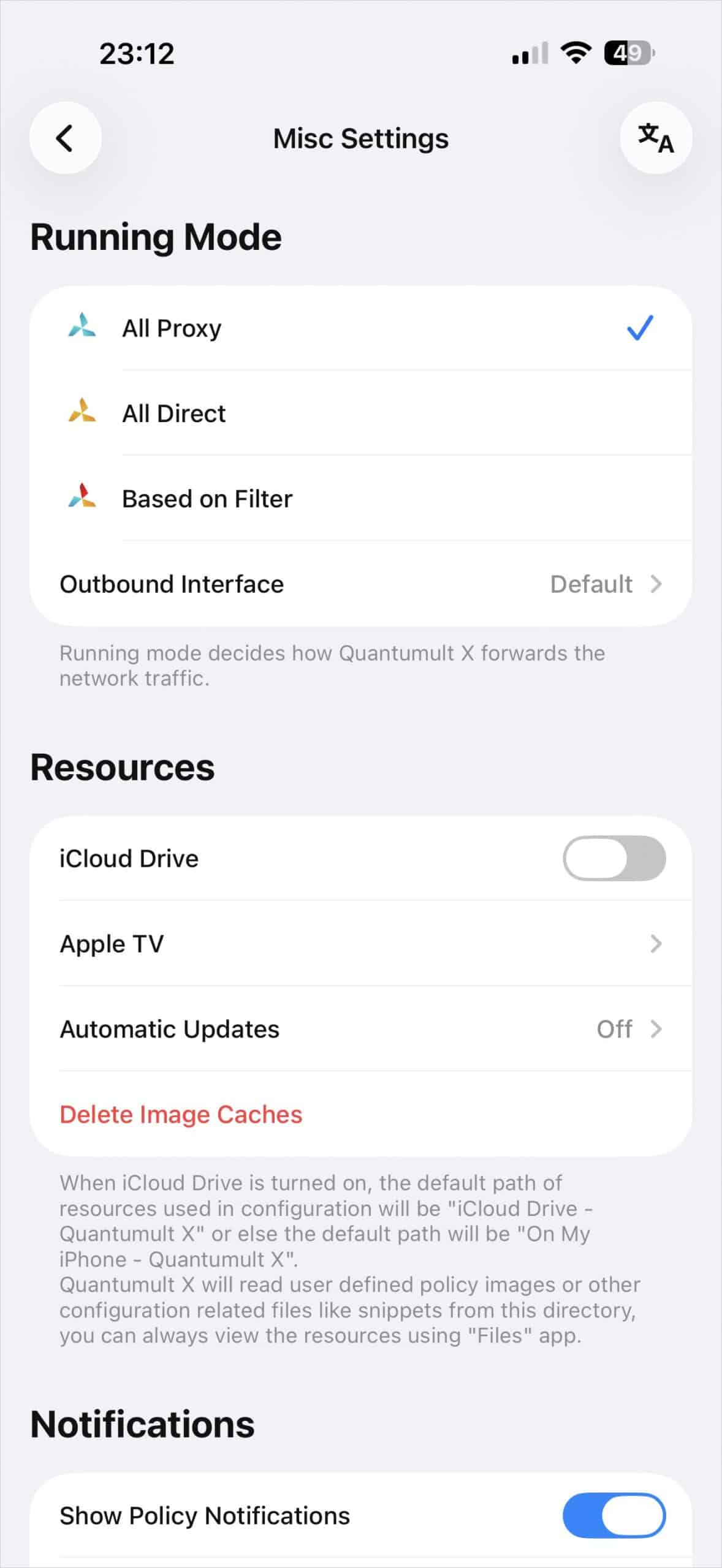
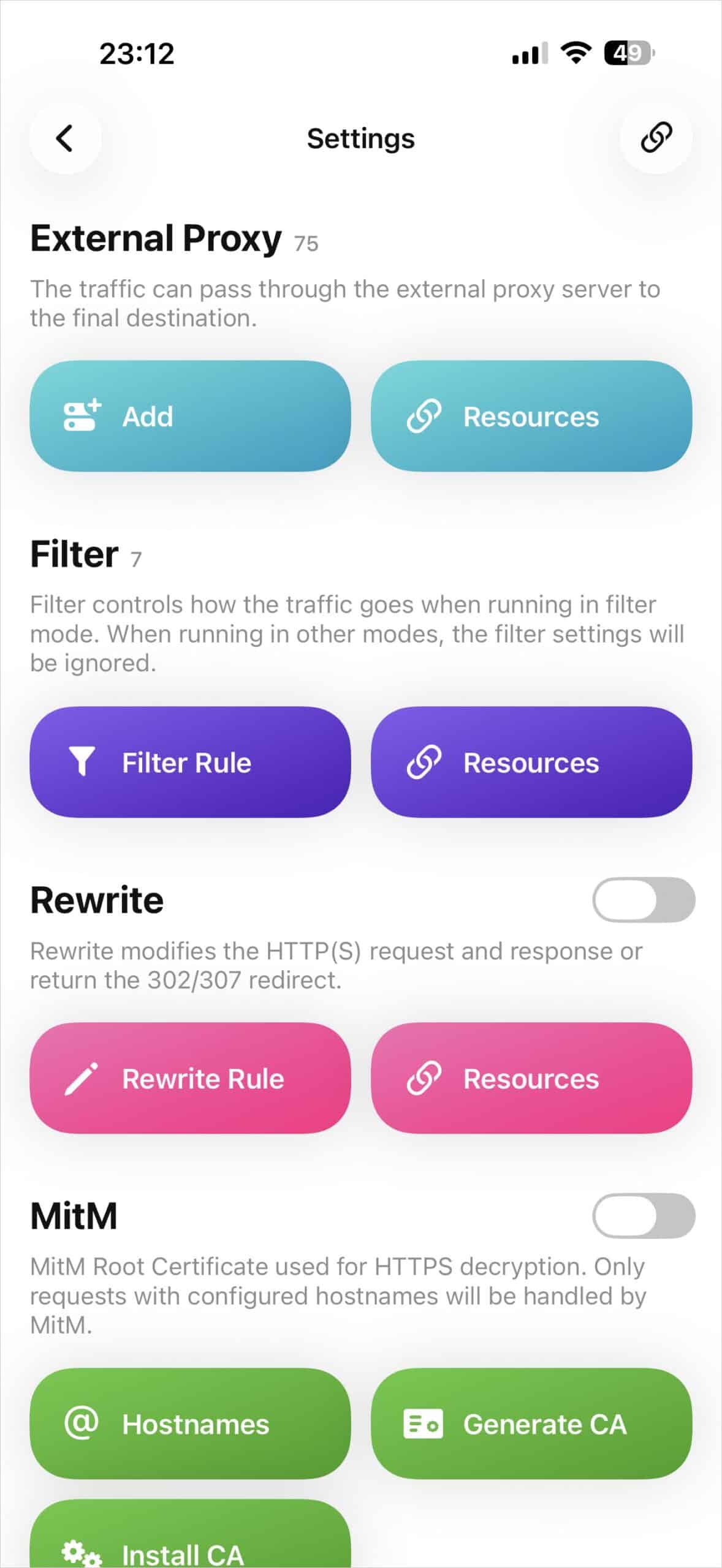
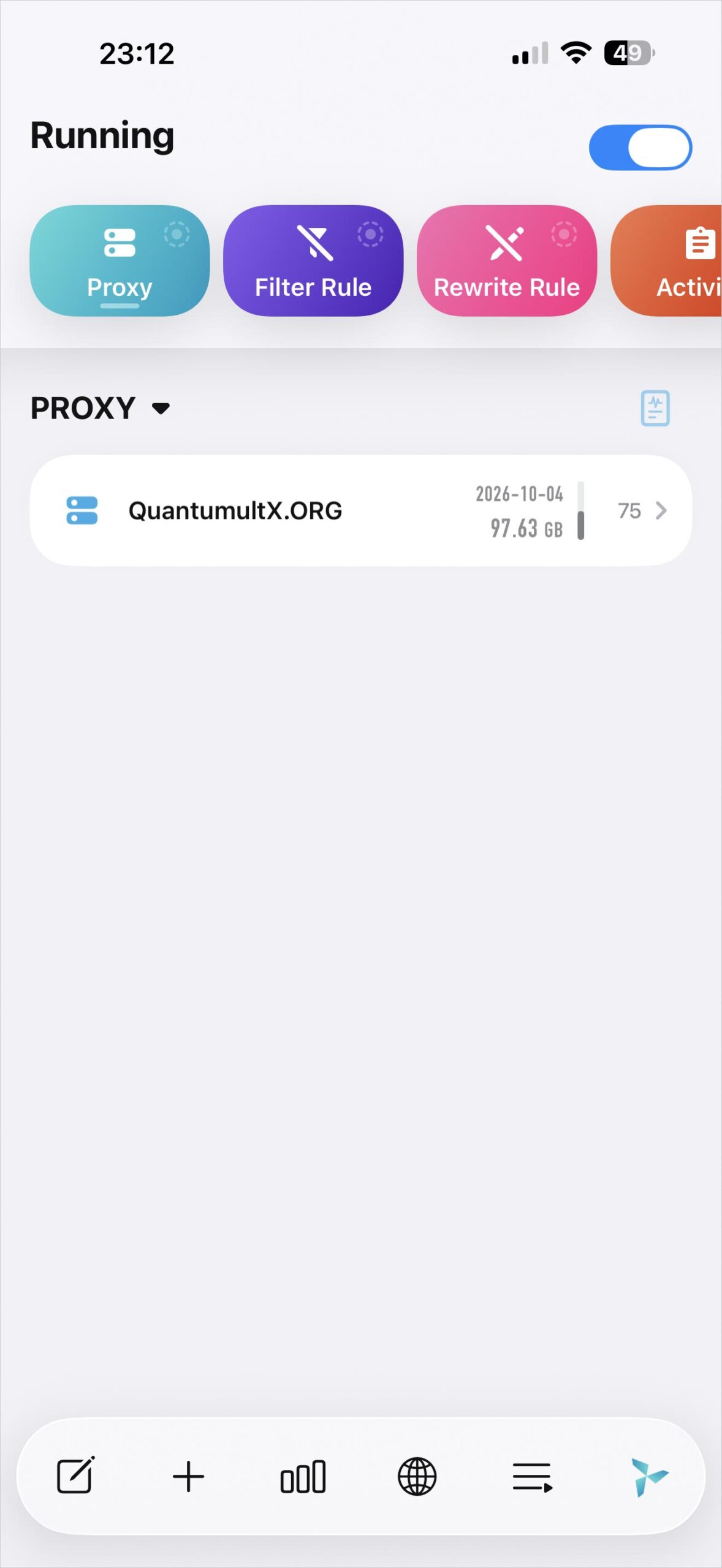
Servers
Use a URL your provider supplies for Quantumult X or confirm the resource matches the app’s supported server syntax. See the developer sample for examples of remote server resources. If you are deciding what to buy, review the Quantumult X servers page for plan and format checks.
Quick Configuration
- Copy the provider’s compatible resource URL. In Quantumult X Settings, open the server resource controls and add a remote resource.
- Enter a recognizable tag, paste the URL into the resource path, and save. Refresh it if the imported entries do not appear immediately.
- Return to the main screen, choose an available server or a policy using that server, and enable the connection. Approve the system prompt if it appears. Test a request that your rules should route through the proxy.
If the resource loads but traffic takes another route
Check the selected policy and active routing mode. If no servers imported, confirm the URL is for a server resource and that its format matches Quantumult X. See the Quantumult X FAQ for further checks.